✨ A sneak peek at our new, more accessible External Assessor Dashboard
View in browser
New PebblePad Logo 2025

Hello ,


As a follow-up to the message we shared in October, we’re excited to give you a first look at the finalised designs for our new External Assessor Dashboard, launching in the 2026.1 release at the end of January.


This update is an important step in our wider mission to become WCAG 2.2 AA compliant and it also delivers a clearer, more intuitive experience for external assessors.


Why We’re Making This Change

The current External Assessor Dashboard has some longstanding accessibility and usability challenges. It doesn’t meet WCAG 2.1 AA standards, and we’ve heard from external assessors that it can be difficult to:

  • Understand what’s been shared for assessment versus viewing
  • Find recently shared items
  • Manage clutter from years of past interactions

The new dashboard addresses these issues and introduces a cleaner, more intuitive design that supports accessibility and helps assessors prioritise their workload.


What’s Changing

The new dashboard is organised into a maximum of five clear sections, designed to be easy to navigate and accessible to all users.

Section 1: Overview

Displays the user’s account and organisation details, with the ability to switch organisations if applicable.

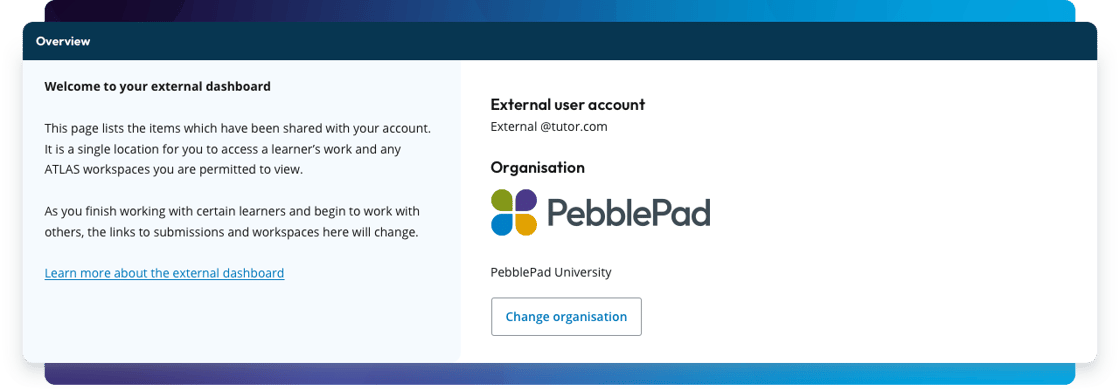
 

Screenshot of the “Overview” section of the External Assessor Dashboard. The left panel contains a welcome message explaining that the page lists items shared with the user’s account and provides a link to learn more about the dashboard. The right panel displays the external user account email address, the organization name “PebblePad University” with its logo, and a button labeled “Change organisation.”

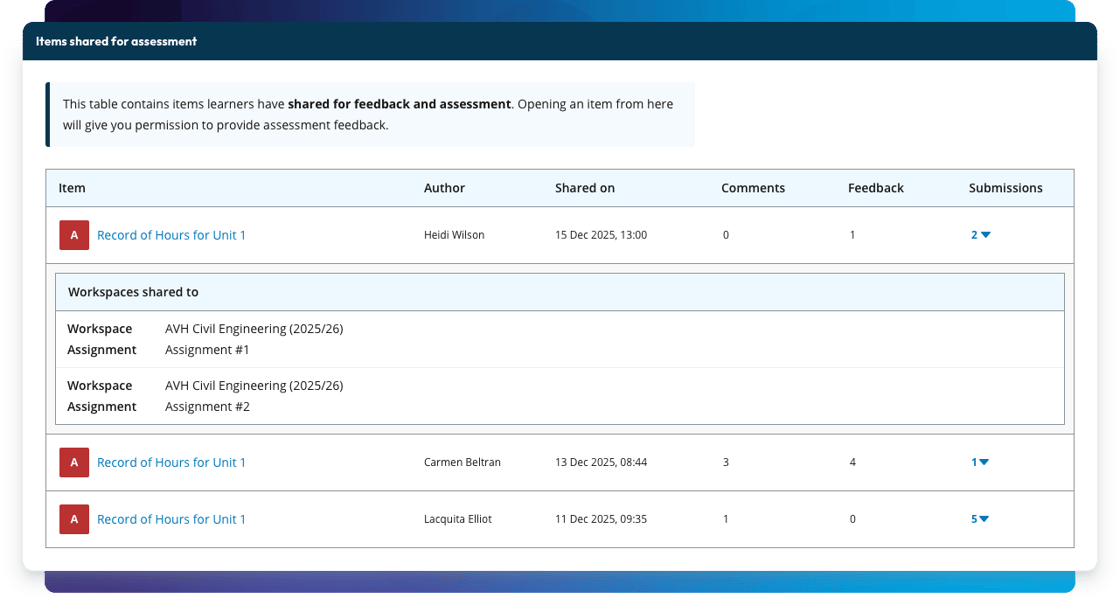
Section 2: Items shared for assessment

A clear, easy-to-scan table showing items shared for feedback and assessment, including:

  • Title (clickable link)
  • Author
  • Date shared
  • Comments
  • Feedback
  • Assignments (clickable to view associated workspace and assignment names)
Screenshot of the “Items Shared for Assessment” section of the External Assessor Dashboard. The description states that the table contains items learners have shared for feedback and assessment. The table includes columns for Item, Author, Shared on, Comments, Feedback, and Submissions. Three items are listed, each showing the title “Record of Hours for Unit 1” as a clickable link, author names, share dates, and numeric values for comments and feedback. The first item expands to show two associated workspaces: “AVH Civil Engineering (2025/26) Assignment #1” and “Assignment #2.”

'Delete shares' & decluttering update 

In our October update, we mentioned the possibility of adding a ‘delete shares’ option. After further research and extensive user feedback, we’ve decided not to include this in the January release.


We heard a wide range of interpretations of what ‘delete’ should mean, whether it removes access entirely, archives items or something else. Rather than introduce confusion or disrupt existing workflows, we’re taking more time to design a solution that works well for everyone.


To help manage clutter in the meantime, the new dashboard includes:

  • Persistent sorting, showing the most recent shares first
  • Pagination controls, helping reduce on-screen clutter

These improvements make it much easier to find relevant items quickly without the risk of accidental data loss.


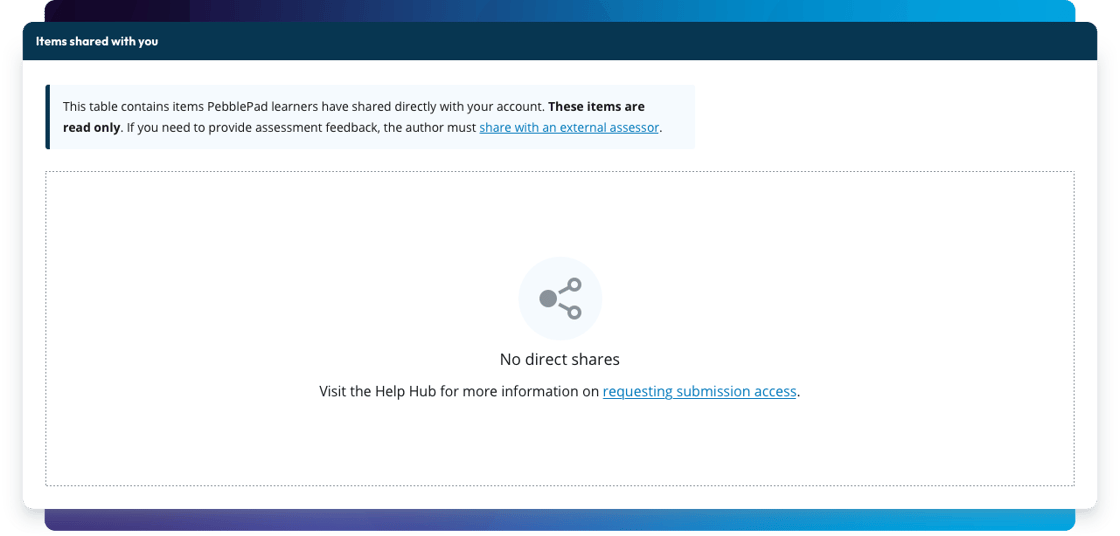
Section 3: Items shared with you

A separate table for items shared for viewing only (no assessment permissions), with the same columns and functionality as the assessment table.


When there are no items available in either table, a useful link to the Help Hub will be displayed.

Screenshot of the “Items Shared With You” section of the External Assessor Dashboard. The description explains that this table contains items shared directly with the user’s account for viewing only, with a note that these items are read-only. The table is empty, displaying a message “No direct shares” and a link to the Help Hub for more information on requesting submission access.

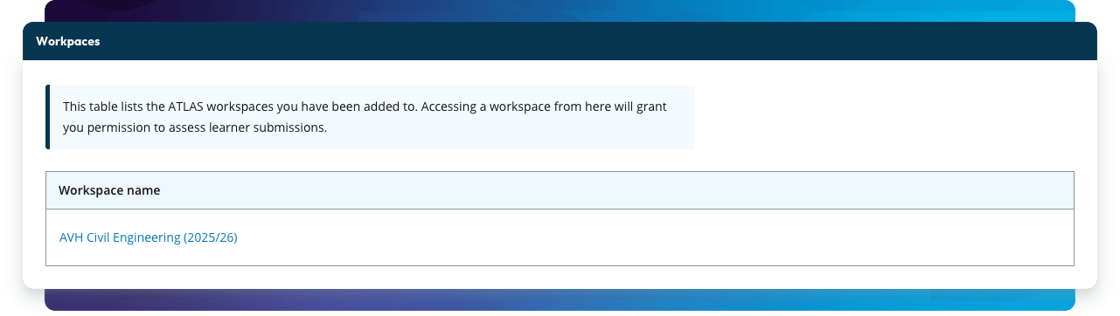
Section 4: Workspaces

A simple list of workspaces that the assessor has access to, displayed as clickable links for quick navigation.

Screenshot of the “Workspaces” section of the External Assessor Dashboard. The section includes a description stating that the table lists ATLAS workspaces the user has been added to, granting permission to assess learner submissions. Below the description is a single-row table with the workspace name “AVH Civil Engineering (2025/26)” displayed as a clickable link.

Section 5: Account services (Conditional)

For users with accounts across multiple organisations, this section provides guidance on merging accounts.

Screenshot of the “Account Services” section titled “Merge accounts.” The section explains that users with external accounts on two or more PebblePad installations using the same email address can merge them for easier access. There is a link to learn more about merged accounts and a blue button labeled “Merge my accounts.”

When to Expect This Change

The new dashboard will go live for all customers in the 2026.1 release at the end of January. There are no changes to the feedback process. External assessors will simply see the new dashboard when they log in.


What You Need to Do

  • Share this update (and the visuals) with your external assessors so they know what to expect
  • Look out for updated help guides, which will become available closer to launch

If you have any questions, please contact your Customer Success Manager or email product@pebblepad.co.uk.


Kind regards,


Fabienne Loveder

Product Manager & Accessibility Champion

PebblePad, E-Innovation Centre, University of Wolverhampton, Telford, Shropshire TF2 9FT, United Kingdom, +44(0)1952288300

Unsubscribe Manage preferences